Introduction
Vitalserver is developed to make the VitalDB server available on a hospital's internal network. This manual explains how to set up and run Vitalserver and how to use it.
Notes: This guide is based on the 2025-02-27 version.
Installation
- Skip this section, if our research team visited your institution for the installation and setup.
- Download vitalserver.zip from https://vitaldb.net/vitalserver.php and unzip the file to the C drive.
- Install Redis and NodeJS from C:/vitalserver/install. Node version MUST be v.12.16.2.
- Right-click C:/vitalserver/service/include/config.js, and click Edit.
- Enter a folder path to store vital files as shown below.
- const file_folder = “Z:/”;
- If you are storing vital files on a NAS, please refer to the following link. https://kb.synology.com/en-us/DSM/tutorial/HowtomapsharedfolderWindowsPC
- Double-click serverstart.bat located in C:/vitalserver to run the server. We recommend moving serverstart.bat to the Desktop folder for convenience.
- Server IP and port are set to 127.0.0.1:80 as default. To change the server settings, please see Server IP Setting of Server Configuration below.
Server Configuration
Please log in on Vitalserver as admin to set up the server.
- Open a web browser on the PC where you installed the server.
- Enter “localhost” in the address bar and press Enter key to access the server.
- Log in to the admin account (ID: admin, PW: admin). To change the admin password, see the Account Settings section below.
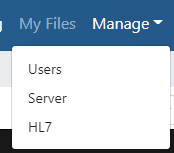
- Go to Manage > Server.
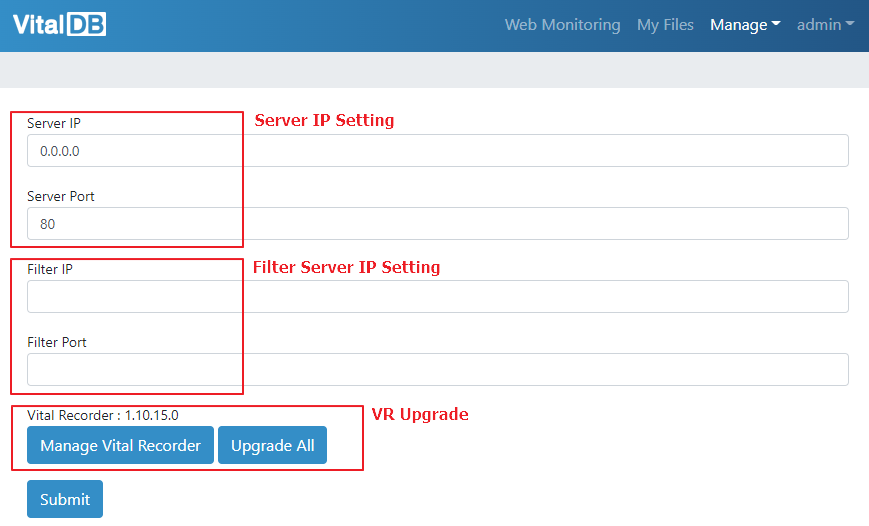
Server IP Setting
Server IP defaults to localhost, so the IP must change to the static IP address for the other PCs and VitalRecorder devices to access the server. And, if the port is other than the default value of 80, modify the Server Port and click the Submit button to save the settings.
To apply the changes, restart the server by closing the Command Prompt and clicking server_start.bat.
Filter Server IP Setting
These settings are required to use the Filter feature in Web Monitoring. This is the same function as the filter in VitalRecorder for Windows.
VitalRecorder(VR) Upgrade
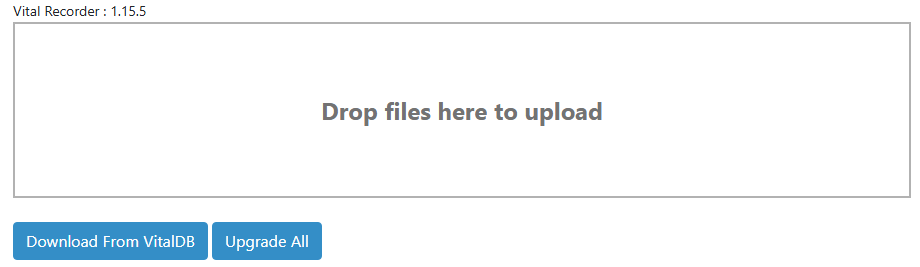
This section is for upgrading VR devices.
- If the server PC has access to VitalDB, you can upload the latest upgrade file to the server by clicking the “Download From VitalDB” button.
- If you cannot access VitalDB, download the latest upgrade file from VitalRecorder: VitalDB with a PC that can use an external network, and then upload the file to the Vitalserver. Drop the file in the box (Drop files here to upload) to upload.
- Once the upgrade file has been uploaded to the server, you can upgrade all VR devices with the Upgrade All button. You can also upgrade from the web monitoring page. Please refer to the Web Monitoring section.
User Management
On the Users page, the admin can add or delete users.You can share your Web Monitoring views or recorded files with other researchers by giving them a new account and permissions. It is convenient to create accounts on a per-ward basis when using the server as a central monitor.
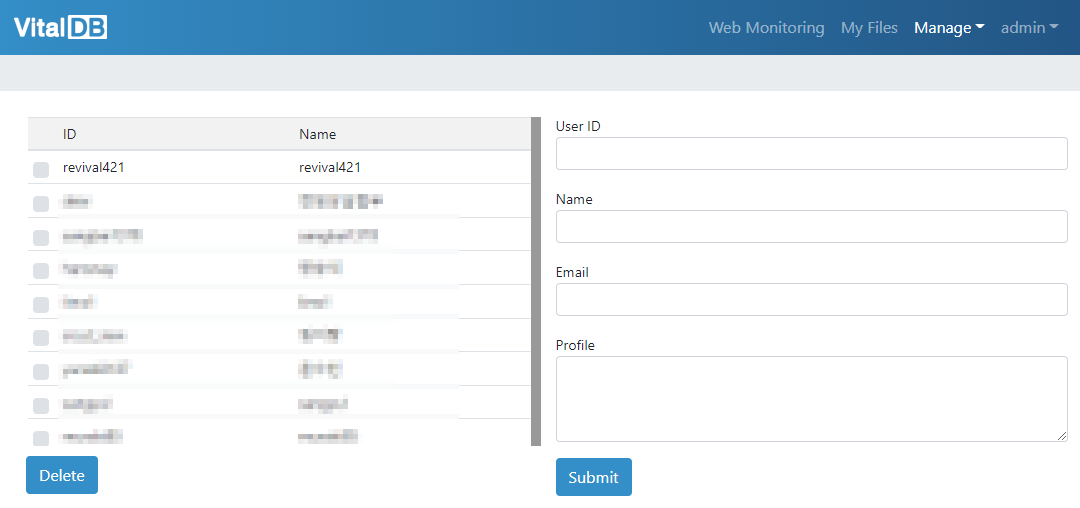
- On the right side of the page, enter User ID, Name, Email and Profile, then click Submit to create a user.
- Password of the new account is the same as the account’s ID.
- To delete a user, select the user in the Users list and click the Delete button.
HL7 Settings
This feature is to help with EMR recording. For inquiries about using HL7 features, please contact us.
Account Settings
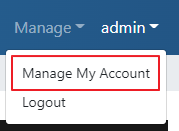
Users can edit their account information on the Manage My Account page.
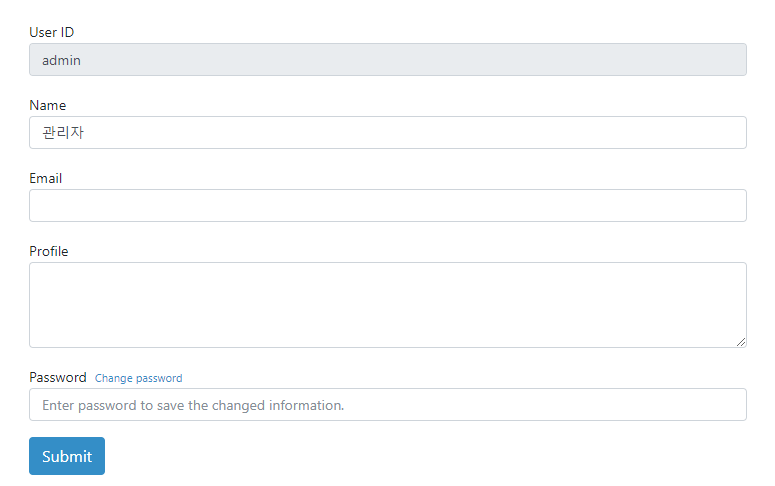
Enter the password in the input above the Submit button for the authentication and click Submit to save the changed information.
Web Monitoring
On the Web Monitoring page, you can view a patient's vital signs in real time broadcasted from the PiVR or VitalRecorder for Windows. Also, you can group the monitors and filter them by group, and manage VRs remotely.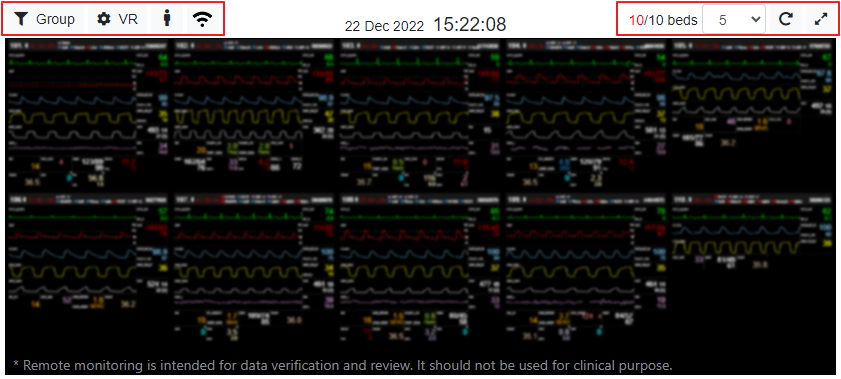
Group
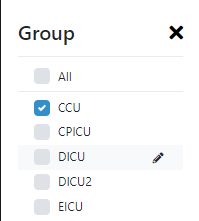
Click the Group button on the upper-left of the page to see the group list as shown above.
- If no groups are selected, you will see all monitors, including ungrouped monitors.
- If All is selected, you will see all monitors that are grouped.
- If you select one or more groups, you see the monitors in the selected groups.
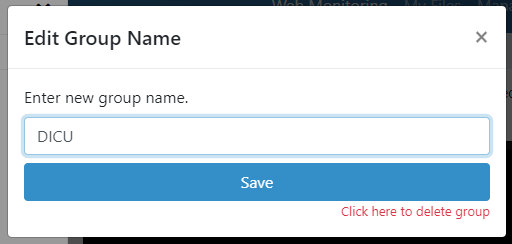
- When you mouse over a group, you will see a pencil button next to the group name, as shown in the image at top left. When you click it, the Edit Group Name pop-up appears, allowing you to edit the group name.
Manage VR
Manage VR allows you to apply VR settings in bulk. You can view all VR names, VR code, OS, and more at once.
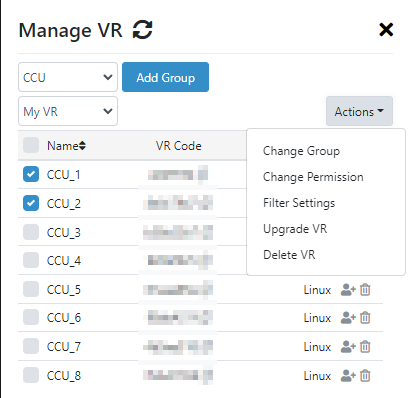
- In the upper left corner, the box labeled CCU is the group selection function. You can see a list of VR devices by group. To the right of the group selection, click Add Group to add a new group.
- All functions in the Actions menu can be applied in bulk. Click the checkboxes of the VRs and select an action from the Actions menu to apply.
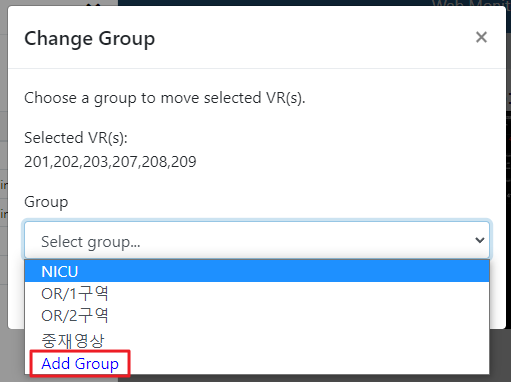
- Change Group: change the group of selected VRs. If you select Add Group and enter a new group name, the VRs are set to the new group.
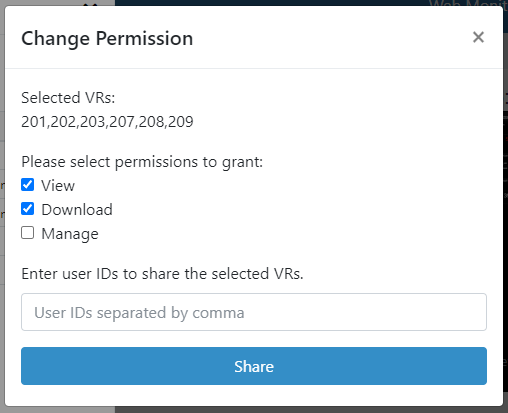
- Change Permission: grant permissions to other accounts..
- View: permission to view real-time monitoring on the Web Monitoring page.
- Download: permission to view and download recorded files from My Files page.
- Manage: permission to control the monitor’s device setting, version control, and etc.
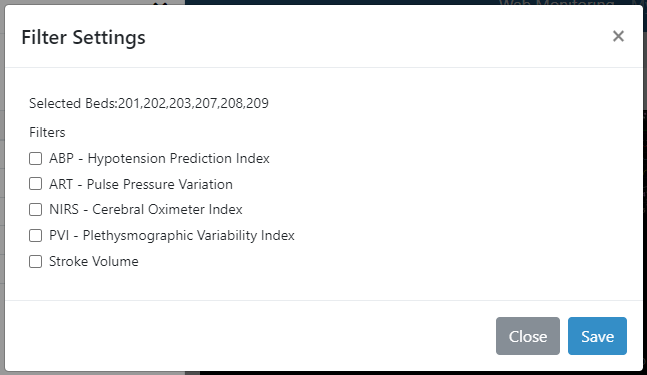
- Filter Settings: this feature predicts various factors like low blood pressure. To use this, the Filter server installation is needed.
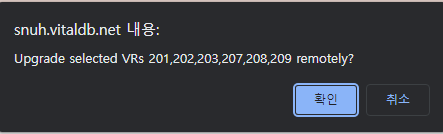
- Upgrade VR: Upgrade selected VRs remotely. Please refer to the VR Upgrade section above to upload the upgrade file to the server before using it.
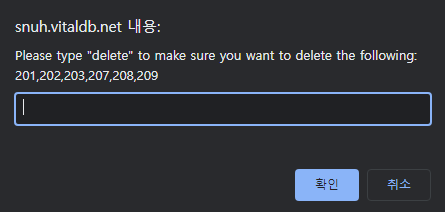
- Delete VR: Delete the selected VRs. “delete” must be typed in the input as shown below.
Other Functions
There are functions other than Group and Manage VR such as filtering monitors by patient existence or by network status.


The picture below is an example that illustrates the functions.

- Filtering monitors by patient existence
- When clicked, only the monitors with patients in them will be visible. In the example above, only CCU_1 would be visible.
- Filtering monitors by network status
- With a single click, you will only see monitors that are connected to the network. For example, CCU1 and CCU3 would be visible.
- Double-click to see only the disconnected monitors like CCU2. CCU2 has a disconnected icon next to the name and it says "7d 13h", which means it has been disconnected for 7 days and 13 hours.
- CCU_3 is the monitor that is connected to the network but is on standby because there is no patient in the bed.
- Arranging monitors by selecting the number of columns per row
- The number of columns can be set from 1 to 10.
- Above, it's set to 3, so you can see three monitors in a row, CCU1, CCU2, and CCU_3.
- Refresh button: to refresh the page.
- Fullscreen button: The web browser will go fullscreen and the web monitoring page will also switch to fullscreen mode.
Monitor Menu
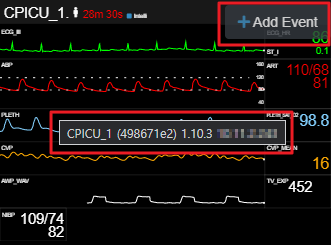
- When you hover over the monitor, you can see the corresponding VR information as shown in the center of the image above: from left to right, the bed name, VR Code, and VitalRecorder software version. The last mosaic is the IP address of the VR device.
- The "+ Add Event" function in the upper right corner adds an event with the current time to the file being recorded.
Double-clicking on a monitor switches the selected monitor to magnified mode, as shown below.
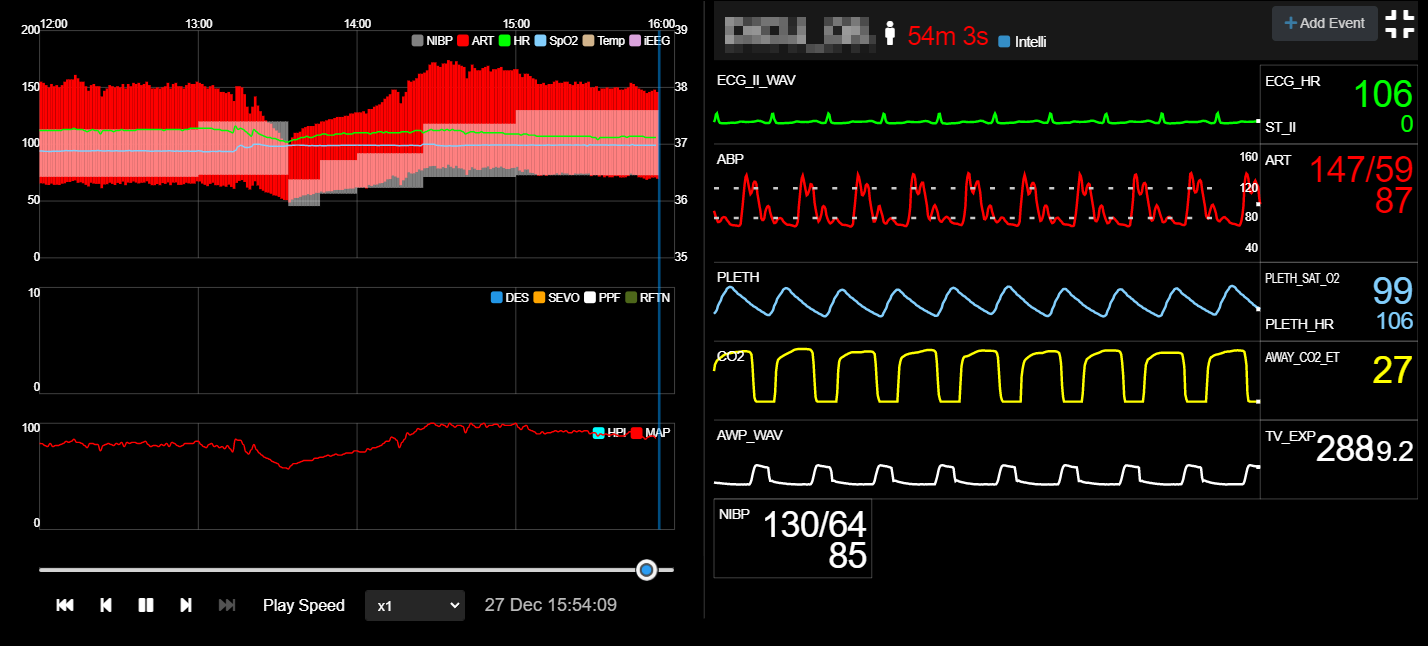
- The graph on the left side of the screen is the patient’s trend history for the past four hours.
- You can replay the last four hours with the controller on the bottom left of the screen.
Right-clicking on the monitor brings up a dropdown list, as shown below.
- Network Settings (Only available with PiVR): Accessing the network setting page of PiVR remotely. VR’s IP address with port 80 must be open for this function to be working.
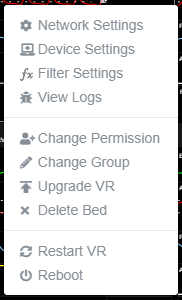
- Device Settings: To add/modify device settings to VR.
- Filter Settings: To predict various factors, such as predicting low blood pressure. To use the Filter feature, you need to install the Filter server.
- View Logs (Only available with PiVR): This feature reads PiVR's logs in real-time. You can check the logs from the browser's DevTools console.
- Change Permission: Edit view/download/manage permissions given to other users.
- Change Group
- Upgrade VR (Only available with PiVR): PiVR Remote Upgrade Feature
- Delete Bed
- Restart VR
- Reboot: Rebooting VR device remotely.
My Files
On My files page, you can search, view, and download vital files recorded by PiVR or WinVR.
Search Files
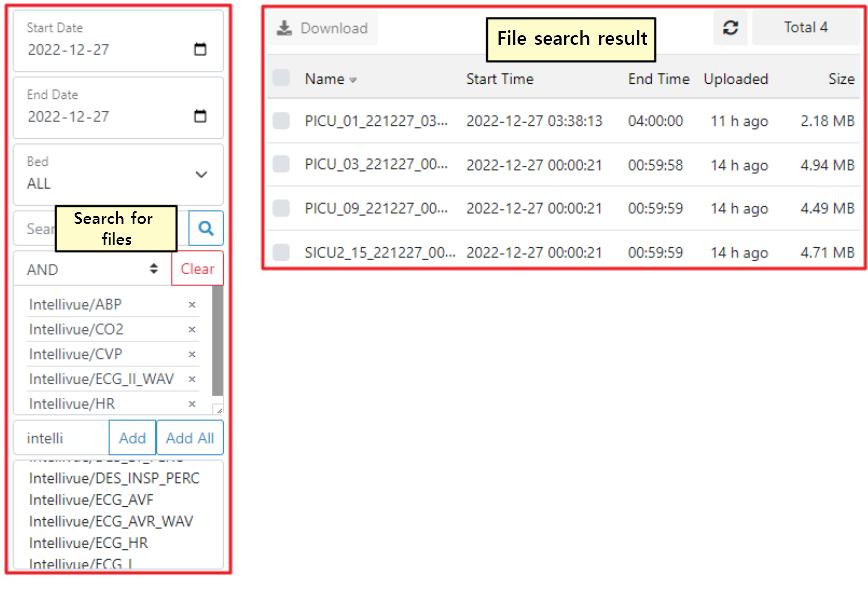
On this page, you can search for files under various conditions as shown in the figure above.
- Start Date, End Date: search files based on the date the file was recorded
- Bed: file search by bed name/operating room
- Search Keyword: search by filename.
- Tracks: list files by device/parameter name
File List
- Filename, recording start time/end time, file uploaded time, and size are shown in the list.
- The list of files in the center of the above image is the result of searched files recorded on 2022-12-27, where ABP, CO2, CVP, ECGIIWAV, and HR tracks were acquired from the Intellivue device.
File View
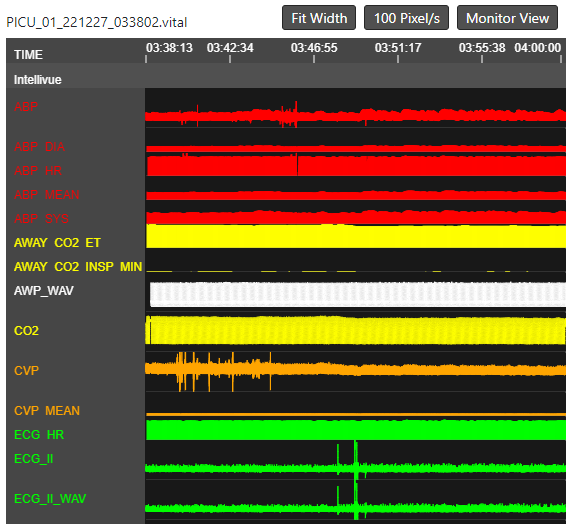
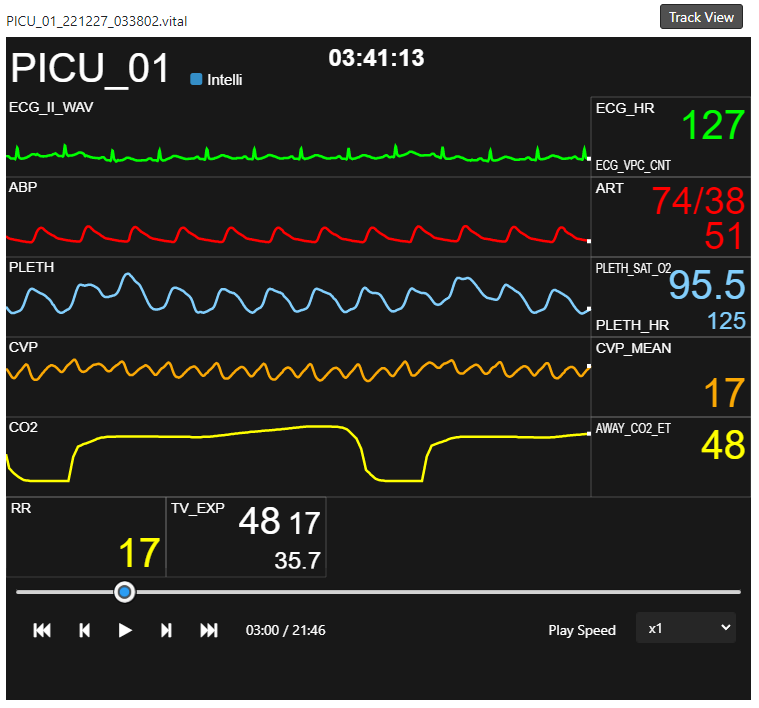
- When you click a file name in the list, you'll see a preview of the file on the right side of the My Files page.
- You can check the overall history without downloading the file.
- How to operate Track View (left picture)
- Mouse Scroll1: scroll over the track name to scroll track list up/down.
- Mouse Scroll2: zoom in/out the view by scrolling over the point you want to take a look.
- Mouse drag: Drag the mouse left/right to move the time bar.
- Monitor View (right picture)
- Click the Monitor View button on the top right of the track view to switch to the monitor view mode.
- The operation is the same as the monitor on the Web Monitoring page.
Frequently Asked Questions
The server is running, but the page does not appear in the browser. What should I do?
Please check if there are multiple Command Prompt (cmd) windows running the server. Make sure only one instance is active.
If you are using a NAS, the following are common causes:
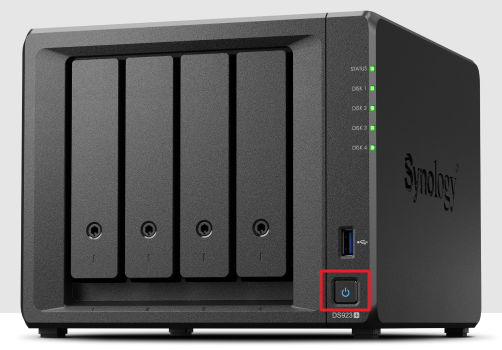
- The NAS is powered off:\
If the power button on the NAS does not show a blue light as indicated in the image below, please press the power button to turn on the NAS.
- The connection between the server PC and the NAS is lost:\
In the example below, the Y drive on the left indicates a disconnected drive, while the Z drive is a properly connected drive. You can check this in File Explorer > This PC on the server PC.\ If a drive such as Y appears disconnected, please refer to step 3 of the Installation guide.

#
Contacts
Research and Development
Professor
Hyung Chul Lee
Vitalserver
Researcher
Eunsun Rachel Lee
Vital Recorder
Researcher
Dayeon Sim
Acknowledgement
The rights of Vitalserver belong to Seoul National University, and the rights of distribution and sales have been transferred to iTech.
Unauthorized reproduction and distribution of this program is subject to legal restrictions.