MEKICS MP1300
Note: Connects wirelessly via a dedicated Wi-Fi router. Router must be configured before first use.
| Connection | Router IP | Server IP (VR PC) | Server Port | VR Device Name |
|---|---|---|---|---|
| Wireless (Wi-Fi) | 192.168.0.1 | 192.168.137.1 | 6002 | MEKICS |
Step 1 — Router Setup:
- Connect PC to the router AP
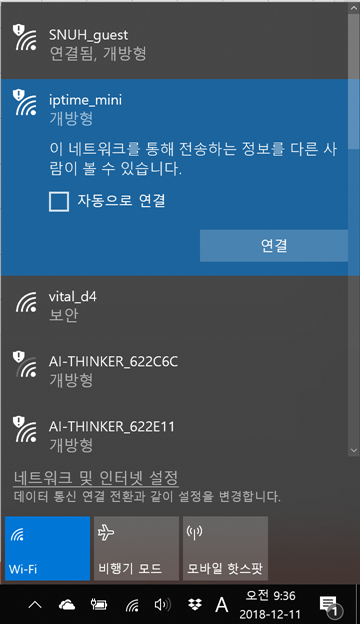
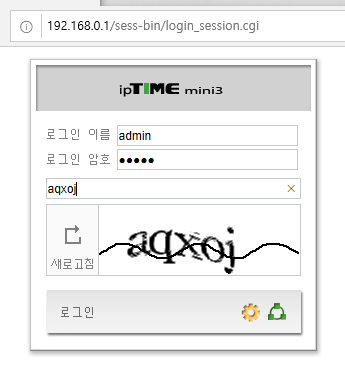
iptime-minivia Wi-Fi. - Open browser →
192.168.0.1→ login:admin/admin.
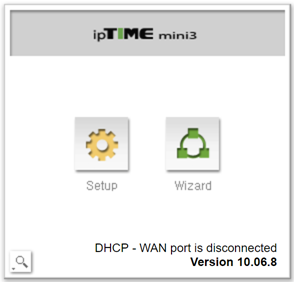
- Press Setup.
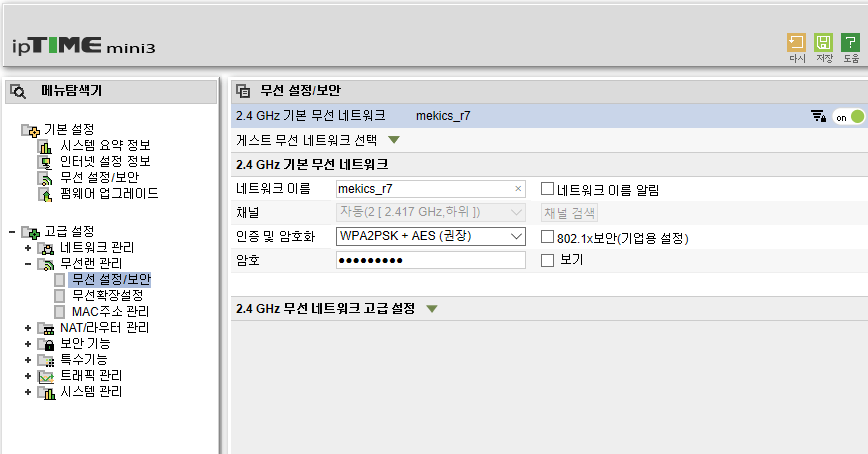
- Navigate to Advanced Settings → Wireless LAN Management → Wireless Settings/Security. Set SSID, password, encryption: WPA2PSK+AES, uncheck "Broadcast SSID" → Apply.
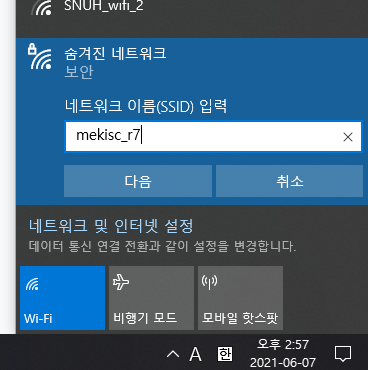
Reconnect by manually entering the new SSID and password as a hidden network.
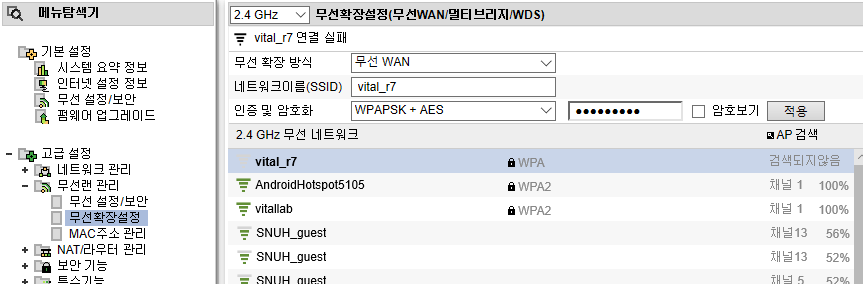
- (Optional — hospital network) Navigate to Advanced Settings → Wireless LAN Management → Wireless Extension Settings. Set method to "Wireless WAN", enter VR hotspot SSID and password.
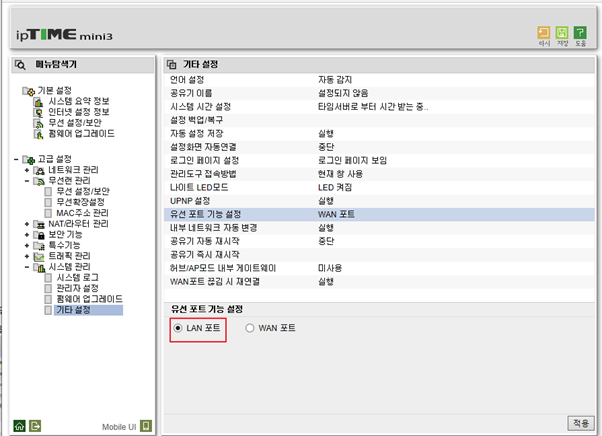
- Navigate to Advanced Settings → System Management → Other Settings. Under wired port function, select "LAN Port" → Apply.
Step 2 — MP1300 Device Setup:
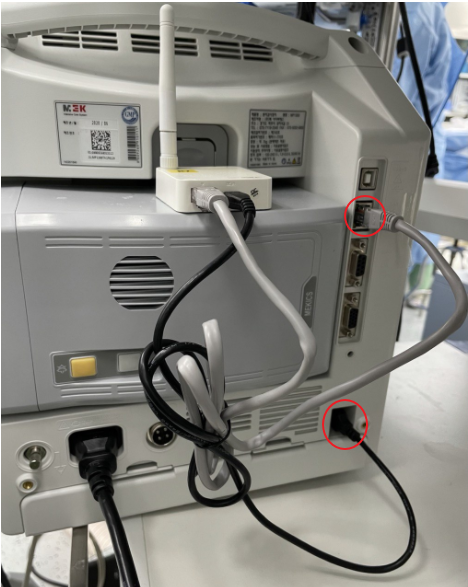
- Connect the router's power cable to the USB port on the rear of the MP1300. Connect a LAN cable from router to MP1300.
- Navigate to System → Network. Set IP and gateway:
- IP:
192.168.0.xxx(last octet: 2–255, unused) - Gateway:
192.168.0.1
- Navigate to System → Network → Central → Mode → MP601.
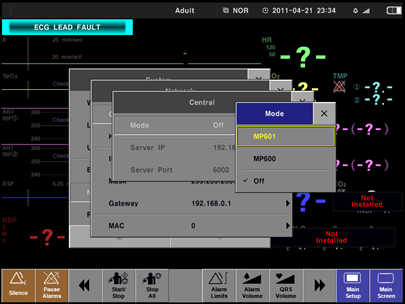
- Under Central settings, set Server IP:
192.168.137.1/ Server Port:6002.
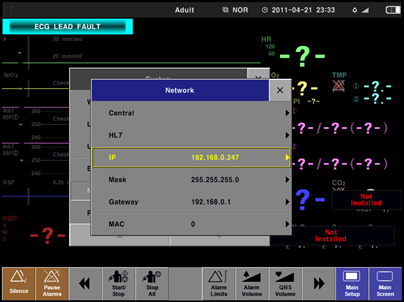
- Restart the device.
Step 3 — Vital Recorder Setup:
In Vital Recorder, press Add Device → MEKICS → Port 6002.